Showing posts with label access recovery. Show all posts

Wednesday, February 13, 2013

How to resolve Access Database Error: 'An error occurred while loading Form_FormName'


Have you ever suffer with this error message: 'An error occurred while loading Form_FormName'. I had faced this issue last night. Here is full scenario: 

Real Life Scenario: When I was trying to open the database, the message pop up:

"An error occurred while opening 'form'. 

After that it asked me 'Do you want to continue loading the project?, Then I clicked on 'Yes'. After that I got this error message: 

"The form name 'form_old' is misspelled or refers to a form that doesn't exist." 

When I clicked OK, I got the same message total of 3 times & Then finally the database got open. If you are also facing this problem then use following steps that I used to fix the issue:

Solution: This error means that your database is partially got corrupted. This error occurs when you tried to convert your database from one version to another. To resolve this issue, Decompile the copy of your database: 

1.First make a copy of the mdb file when the Access database is not running.

2.Compact your database:

In Access 2010, Compact and Repair Database on the Database Tools ribbon.
In Access 2007, click Office Button (top left) | Manage | Compact.
In Access 95 - 2003, Tools | Database Utilities | Compact.

3.After that Close your database & Open command prompt, and type this in command prompt and include the quotes:

 "c:\Program Files\Microsoft office\office\msaccess.exe" /decompile "c:\My Documents\Database.mdb"

4.Compact again your database.

5.Try the conversion again.

This is the solution which I used to fix my issue. But one of my friends told me that this step got failed to resolve this error message. He suggested me to try Third Party Access Recovery Tool. Then Again I tried Third party tool in the same scenario. The tool successfully repaired my database which was partially got corrupted. Both solutions worked well in my scenario. Good Luck for you to fix your issue by above methods!! 

If you have any other solutions, please share in comment. 

»»  Read More...

Tuesday, January 22, 2013

How to fix Access Database Error Message: 'Some table rows show #Deleted'


When you try to retrieve, insert, or update records in access database tables then sometimes some table rows shows "#Deleted" error message.  This error means that the table or its index is get corrupted. To resolve this issue, you have to repair your corrupted index or table. Here are all steps: 

If index get corrupted then try following steps to repair corrupted index: 

1.If the table has any relationship then first delete it: 

In Access 2007 or 2010: Database Tools>>choose Relationships. 
In Access 95 – 2003: Relationships from the Tools menu.

2.Open the table in design view. Open the Indexes box, and delete all indexes. Save. Close. 

In Access 2007 or 2010: Indexes is on the Table Tools ribbon.
In Access 95 – 2003: it is on the View menu.

3.Select the table in the Database window (Access 95 - 2003) or Nav Pane (Access 2007 and later.). After that Copy and Paste & give a new name. 

4.Create a query into the problem table. Now check that you can see the all records. Change it to an Append query, telling Access to append to the new table. After that Run the query. 

Access 2007 and 2010: Append is on the Query Tools ribbon
Access 95 – 2003: Query menu 

5.After that check that all the data is available in new table, and then delete the old table.

6.Compact the database.

7.Rename the new table so it has the name of the old table.

8.Recreate the indexes and relationships that you have destroy above.

If table get corrupted then try following steps to repair corrupted table: 

1.Create a query into the table.

2.Attempt to exclude the corrupted rows. 

3.Once you have the best range of uncorrupted records you can retrieve, change it to a Make Table query. Make Table is on Query menu in Access 95 - 2003; in Access 2007 or 2010, it is on the Query Tools ribbon under Query Type.

4.Run the query to create the new table.

5.Delete the old table.

6.Compact the database to get rid of any reference to the problem table:

7.Rename the new table to the name of the old one.

8.Recreate the indexes and relationships you destroyed above. If you are unable to create a relationship, use the Unmatched Query Wizard to identify which records are missing.

9.Again, programmatic re-creation may help.

These are the different steps to repair corrupt indexes & tables but you can also try one common method to repair corrupt index & table that is Advanced Access Database Recovery Software. These software repair all corrupt access database objects & files. You can also try these software when all steps get failed to repair your corrupt index & table.  

»»  Read More...

Tuesday, January 24, 2012

5 ways to say Goodbye to Access database corruption


Most Access database users complained that Access is susceptible to corruption. Here are some ways to help you to protect your database from corruption. The ways are understandable and useful which I explain here not only for technical users, but also novice user can easily use it. These ways can help you in future as well. 

Never forget to take “Backup”!!


It is mandatory to schedule and maintain a regular backup of access database on safe location in the drive. Never store it on the same hard drive with your database because if something went wrong with that drive, you’ll lose data as well as backup copy. You can also use backup software to perform backup process. But remember some backup software starts backup process even if they’re open. These process only increases the possibilities of corruption, so first close your database before you perform backup process.


Encrypt only when required!!


At writing time every page is encrypted and decrypted at load time. If your database gets corrupted then it is very costly & difficult to recover encrypted data. So use only when it is more required.


Schedule regular maintenance of your database!!


Every application should have some basic maintenance built in. Schedule regular maintenance within your database. You can set it weekly, monthly.  Through automatic backup and clean shutdown detection, you can maintain your database.


Compact Regularly!!

Regularly compact your access database. Compacting always improves database performance. The Compact and Repair Database option is available in the Tools group on the Database Tools tab. Set this option to database so that at the time of closing database will compact automatically. Be sure you should back up your database before compacting.


Don't use mismatched Versions of the Jet Database Engine!!


All access database version supports different Jet database engine versions. If you try to run different versions of the Jet Database Engine in your environment, it can also corrupt your Access database. 


Last but NOT least:


Test to ensure following points that mentioned in the article. If all things in your database appear good & backup copy is also fine then you just need to check you are using right Jet Database Engine or not. Use compact repair utility to make sure about the maintenance of database. If it completes, then the corruption issue get resolved. But it may be possible that database get failed or at least appear to be fail in the initial step. You may have received corruption warning message it means there is still something wrong with database. To overcome this problem you can use Access Database Recovery Software. This software easily recover corrupt database and save it on your defined location.

Please feel free to write your comment if you have any doubt.

»»  Read More...

Wednesday, December 14, 2011

Why “This database is in an unexpected state” Error Message Pop Up & Solution of the Error

“This database is in an unexpected state; Microsoft Access can't open it...”


If you find this error message on your PC screen when you try to open MS Access database then it is impossible to open access database. But if you will follow some steps one by one the impossible word can be “Possible”. So here are the steps which you should follow to solve this error message:


First we should know “WHY THIS ERROR OCCURS”?


Possible Causes:
  • This error message pops up when you are trying to convert Access database from a prior version of Microsoft Access by using the DOA compact database method. This has left the access database in an unconverted state.
  • Access Database has been severely corrupted.  


Choosing the Best Solution:


Choose the best solution as per your requirement:
 
  • If you have a copy of the access database in its original format, Use Convert Database command on the Tools menu (Database Utilities submenu) to convert from a prior version of Microsoft Access instead of DAO Compact Database method.
  • If the original database is not available, create a new database and import your tables and queries to preserve your data. But remember that your other database objects can't be recovered.
  • If you want to recover all objects- In this case you should use Jet Compact Repair utility to repair your access database.
  • If above utility is not able to repair your database because this utility has its own limitation then you can use Access Repair third party tool. Stellar Phoenix Access Recovery Software recovers access database after all access database corruption error.

You can choose any one step or if you don't know about what step you should choose to solve the problem, you can use all four steps one by one. By following these steps you will definitely solve this issue & able to access your database successfully.
»»  Read More...

Sunday, November 27, 2011

Encountered Error After Importing Contents of Form? Here is The Solution!

Through the Microsoft Access forms, a user can insert and modify the records into the database more easily and quickly. These forms have user-friendly graphical interface which can easily be used by anyone who is familiar with the basics computer techniques. However, sometimes a user may encounter some error messages relating to MS Access form corruption. The corruption in MS Access form occurs due to virus attack, application malfunctioning, importing the form by using Microsoft Access 2000, etc and in such situations the MS Access database form becomes inaccessible. But, to restore the form, a user can always use latest backup but in the unavailability of proper backup, third-party Access recovery tool can do the needful.

 
Let us discuss this through a practical example wherein a user creates a new form named as ‘Student’ by copying all the controls from the previous form. However, when the user attempts to view the contents of this new form encounters the below mentioned error message:

 
“This action will reset the current code in break mode.
Do you want to stop running code?
To halt the execution of the program so the Module window can be closed, select Yes.
To leave the code in the current state, select No.”


When the user selects ‘Yes’ then he/she encounters the same error message. However, upon selecting ‘No’, the system hangs and the form becomes inaccessible.

Cause:

The above mentioned error message is caused when MS Access 2000 and version 6.3.91.8 of the Vbe6.dll files are installed on the computer system and any of the below mentioned conditions are true:
  • The user has copied and pasted the form which included the modules into a new MS Access 2000 database using MS Access 2000.
  • The user has imported the form/s which have standalone module into a new MS Access 2000 database using MS Access 2000.

 
Resolution:

 
The ‘Compact and Repair’ utility of MS Access database can solve the issue but if this utility fails then the user needs to recreate the form and perform Access repair to recover all the components presented in this (Student) form. To do so he/she needs to take the help of third-party Access recovery software. These software can repair severely damaged database files and recover records or objects in a new Access database file.

 
One of the highly recommended and efficient Access database recovery software is Stellar Phoenix Access Recovery Software. This powerful Access recovery software recovers corrupt Access database files created in MS Access 2010, 2007, 2003, 2002, and 2000. The software allows the user to see the preview of the repairable database objects and is compatible with Windows 7, Vista, Server 2003, XP, and 2000.
 
»»  Read More...

Thursday, November 10, 2011

Discussing Unexpected error 35012 in MS Access 2000 and measures to perform Access recovery

MS Access can be described as an information management tool that helps you effectively store and organize your sensitive, confidential,or business-critical data for easy reference, reporting, and analysis. It enables you to perform data analysis through complex queries. It allows frequent mass-update operations and also enables multiple users to access data at the same time. Despite being a reliable and user-friendly desktop application, it is prone to damage and corruption. Access database corruption may occur due to many reasons, such as virus infection, operating system malfunction, application error, hardware problem, etc. This results in loss of vital data stored in the Access database. To overcome this problem, you need to go for Access recovery through a proficient third-party utility.


For instance, while working on your MS Access 2000 database, you may come across the following error message:


“Unexpected error 35012 ”  


Cause:


The above error occurred because there is some corruption in your Access database. Your database might contain some damaged or corrupt objects. 

 
This would prevent you from accessing the valuable components of your database. You may use an updated backup to restore your database. However, if the backup is unavailable, follow the below mentioned steps to perform Access database recovery.

Resolution:


The following steps may help you resolve the problem-

  • Go to  Tools/Database Utilities and then select 'Compact and Repair'. This utility works even if you are unable to open your database.
  • Try importing the damaged database objects:
  1. Initially create a new Access database.
  2. Click 'File', 'Get External Data', and then select 'Import'.
  3. Now, import all damaged database objects to the newly created Access database.
  4. If you fail to import an object, restore it using a backup.  

If the problem still persists, you should take help of an Access repair tool.

 
These third-party software help you effectively repair all damaged Access database objects and restore them to a new database at your specified location in the system. They incorporate a user-friendly interface design to make recovery more easy, facile, and effortless.

Stellar Phoenix Access Recovery is a professional utility that recovers all Access databases created in MS Access 2010, 2007, 2003, 2002, and 2000. The software can also recover deleted records and other lost database objects. Moreover, it is compatible with Windows 7, Vista, Server 2003, XP, and 2000.
Enhanced by Zemanta
»»  Read More...

Thursday, November 3, 2011

How to Resolve “Action was cancelled” Error of MS Access and Recovering Your Valuable Data

To enhance the functionality of our Microsoft Access database and add advance features to it, we sometimes convert it to a new or higher version. Though the conversion of MS Access database is a common task but at times unsystematic or improper conversion to a new version may create inaccessibility of Access database and thus, we end up losing our valuable data. In the situation of data loss (or data inaccessibility), we always have an option of backup to restore our data. However, in the absence of proper backup or if the backup also fails to recover the data then we can opt for third-party Access recovery software.

 
Consider a practical scenario, wherein you convert your MS Access 2002 to MS Access 2003. After the conversion when you tried to open a report (which was working fine before conversion), you encounter the following error message:

 
“vopen report”

 
In addition, you encounter another error message as:

                                          
“action was cancelled”  


Soon after encountering this error message, the report which you were trying to open becomes inaccessible. The situation becomes worse when you encounter the same error message while attempting to open any report saved on this converted Access database.

 
Cause:

 
The main cause of encountering this unexpected error message every time while opening any report is incompatibility of reports with new version of MS Access database.


The best way to troubleshoot this error is to convert your database back to older version. However, if conversion to the previous state is not possible then the only way to access all the reports is to go for third-party Access database recovery software. These software use powerful scanning method to provide absolute recovery of your valuable data and recover database files which include .accdb and .mdb file extensions.

One of the highly appreciated software for Access repair is Stellar Phoenix Access Data Recovery Software. The efficient software has highly interactive user interface and simple recovery steps which does not require any experience of Access database recovery. The software supports MS Access 2010, 2007, 2003, 2002, and 2000 and is compatible with Windows 7, Vista, Server2003, XP, and 2000.
»»  Read More...

Monday, October 24, 2011

Discussing how minor database corruption in MS Access leads to application crash and serious data loss

MS Access is the most commonly used database application that is all about simplicity, user-friendliness, & ease-of-use. It encompasses tools to manage data as the size your database grows. You can now make use of the newly added Web databases to share your data with others and to track it anywhere at any time. By using a range of reusable components, we can build databases much faster than before. MS Access enables you to get better results with more flexibility. Despite all these benefits, MS Access databases are prone to corruption or damage. This corruption normally occurs due to virus infection, hardware errors, operating system malfunction, etc. As a consequence, you are unable to access your vital database components. To overcome this problem, you need to go for Access database recovery through a reliable third-party utility.


For instance, you have MS Access 2007 installed in your system. Suppose you have added a control to one of your reports and you try to change its 'Control Source' property. By doing so, your application may crash instantly and you may receive any of the following error messages on your screen:


“Microsoft Office Access has stopped working.”


OR


“Microsoft Office Access has encountered a problem and needs to close.
            We are sorry for the inconvenience.”


Cause:


The above specified errors may occur due to any of the following reasons:

  •       The report or form is opened in the layout view.
  •       The report or form includes a sub-report or sub-form.

Another prominent reason could be that the Access database is corrupt. In this case, you may use an updated backup to restore the database. However, if the backup is missing, you should follow the below mentioned resolution steps.


Resolution:


To resolve this issue, try to change the 'Control Source' property of the control in the design view. If the problem still persists, you should take help of a proficient Access repair utility.


These third-party tools embrace a variety of advanced and powerful mechanisms to repair damaged Access databases and safely restore all valuable database objects, such as tables, forms, reports, macros, etc. They have a rich, interactive interface to make recovery simple and facile for the end users. Moreover, they are compatible with Windows 7, Vista, Server 2003, XP, and 2000
Enhanced by Zemanta
»»  Read More...

Friday, October 21, 2011

Causes and consequences of VBA Project corruption in MS Access and tips to perform Access recovery

Visual Basic for Applications (or VBA) is based on Visual Basic 6 (an event-driven programming language by Microsoft). You can use VBA to create user-defined functions for automating several processes and performing other low-level functionality. It allows you to control user interface features, such as menus, tool bars, etc. and modify user forms or dialog boxes. It provides additional flexibility to the database or the host application. However, sometimes corruption occurs in the VBA code and makes all database objects inaccessible. To overcome this problem, you need to go for Access recovery through a reliable third-party utility.    
    

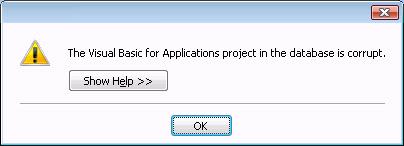
When you attempt to open the Visual Basic Editor in your MS Access database, you may come across any of the below given error messages:

 
“The module name 'module name' is misspelled or refers to a module that doesn't exist.
If the invalid module name is in a macro, an Action Failed dialog box will display the macro name and the macro's arguments after you click OK. Open the Macro window, and type the correct module name.”
 

                                                   Or


The above errors occur when there is some corruption in the database's  Visual Basic for Applications project. 

As a consequence, all your valuable database objects like forms, reports, modules, etc. become inaccessible. In such circumstances, you may use a recent/updated backup to restore your database. However, if the backup is unavailable, you should follow the below mentioned resolution steps.


You need to follow the procedure given below to perform Access database recovery: 

  • Initially, create a blank Access database.
  • Open the corrupt database. Select 'Objects' and then tables.
  • Right-click on the very first table and select 'Export'.
  • You will see an 'Export to' dialog box on your screen. Here, provide the new database name and click 'OK'.
  • Repeat the same procedure for every database object.   

If the problem still persists, you should take help of an Access repair tool. These third-party tools are proficient in repairing corrupt Access databases and restoring vital database objects averting every risk of potential data loss. They can easily restore tables, forms, modules, macros, reports etc. Furthermore, they are compatible with Windows 7, Vista, Server 2003, XP, and 2000.
»»  Read More...

Tuesday, September 27, 2011

Resolve “Invalid Argument” error in MS Access

This error message is signify that user cannot open MS Access database to perform any activity because MS Access database is fail. It can happen even when anything thing goes awry with database that leads to a database inaccessible. The MS Access database get inaccessible due to most of the reasons such as access database error, virus attack, sudden system shutdown, hardware failure, software failure & many more. Error messages “Invalid arguments” comes due to access database get failed.

Find some conditions in which Invalid argument error arises: 

1. When user import, copy, or append data to a table in MS Access
2. When user try to import data in a large access database file (mdb or accdb)
3. Corrupt Records in a Microsoft Access MDB

Due to these error messages user may not be able to access database. I will explain all the conditions step by step:

1) If error occurs due to first condition then use can obtain Microsoft Office 2000 Service Release 1/1a (SR-1/SR-1a) to resolve this error.

2) If error occurs due to second condition then user can resolve this error by splitting the Access database file.

Steps to Split Access Database:

1. Start Access Database.
2. Open the problem Access database file.
3. Go to Tools menu, point to Database utilities in the Database window, and then click Database Splitter button.
4. In the Database Splitter dialog box, click on Split Database button.
5. In the Create Back-end Database dialog box, type a name for the back-end Access database file in the File name box, and then click on Split button.
6. Now Click OK button.

3) If error occurs due to third condition then it is advisable to use an inbuilt repair utility “Compact and Repair”. In some conditions “Compact and Repair” utility won't work because of its own limitation then user can use Access Database Recovery Software.
»»  Read More...

Friday, August 26, 2011

How to repair access file & valuable data from the corrupt access database safely

Microsoft Access is a desktop database application and is designed to run from a single computer system. Unlike Server database applications, which are installed at a server system and accessed from a remote computer, MS Access database solely hosts on a single system. The application was indeed developed to full fill the need of small scale enterprises and the home users. Access comes with the Microsoft Office suite and can be installed like any other software package. As a product of Microsoft, though it is almost flawless, there are occasions, in which Access users face loss/inaccessibility of valuable data following Access database corruption. For all such instances, the Access database repair utilities can be immensely helpful.


Using the MS Access database, you can create Tables, Forms, Reports etc. Small organizations use Access to keep record of their sales cum purchase information. People use the application to get their sales reports by grouping, arranging various informations from the invoices, product table, customer table etc. With many simple and easy-to-use features, Access is widely used for analyzing daily, weekly or monthly business reports by many.


With many important data in the Access files, sometimes, it gets corrupted leaving all your precious data either lost or inaccessible. Below written are some of the commonly faced reasons behind Access corruption:
  • Contradictory third-party plug-ins
  • Malfunctioning of Microsoft Office
  • Operating system crash
  • Malware/Virus infection
  • Simultaneous alteration of the MS Access components
  • Corruption to the file system of the computer

One interesting finding about data loss is that data is never lost form the media till the same is overwritten by some other data. Therefore, under any instance of database corruption, if you can prevent the troubled database from further damage, it cane be definitely recovered back.

However, in any case of Access corruption, if you can sense the reason to be related with other than the Access database itself, you must first try to resolve the same. Secondly, you have always the safest option to get the data back by restoring it from the recent backup.

In case, you do not have any backup available, you need to choose and run any good third party Access repair utility to do the job.

The Access Recovery Software is an wonderful utility to repair Access file and recover your troubled database under any instance of corruption. These third party software is read-only in its operations and very helpful in getting the data back.
»»  Read More...

Thursday, July 21, 2011

Access Database corruption Error "AOIndex is not an index in this table"

Have you got this error message : "AOIndex is not an index in this table"

Here I am sharing my personal experience on this error message. After replicating the access database , I stores it in the same network folder. Now I am not able to open access database & got error message:

"AOIndex is not an index in this table"

It make my access database unusable !!

Why this error occurs: This error have multiple reasons:
  • Faulty entries in the MSysAccessObjects table.
  • Corruption in the MSysAccessObjects table.
  • Invalid indexes error.
  • MS Access database corruption.
Solution:

  • If you have non corrupted backup copy of access database then try to export all the forms.
  • Make a copy and try the free Microsoft Jet Compact Utility program. The Jet Compact Utility program has fixed invalid index errors.
  • Use Access compact/repair utility. This utility rebuilds the indexes.
  • Try third party access recovery software to repair corrupt access database indexes.
In which conditions you can use all above four solutions:

  • You should have backup to apply this solution.
  • Jet Compact Utility program won't work on severely corrupt access database.
  • Compact/repair utility has some limitations. If compact/repair utility discovers data that violates the indexes then it drops the index. The table still has all the same data, but the index is gone. If you have relationships to other tables that depend on this index, the repair process will drop those relationships. SO in this case it is not work properly. To fix this situation, you need to identify the records that violate the index. To find the problem records, you have to use some query. So in this case it is very hactic procedure & not easily understand by everyone.
  • Third party access database recovery software recovers corrupt access database in most possible cause of corruption. First use demo version of the software to check how much corrupt access data is recovered by the software after that purchase it.
»»  Read More...