In this post, I want to walk through the 10 ways to prevent the SQL database corruption. I am so much aware of the corruption situation. It is a nightmare for every DBA. It will turn into permanent data loss if you do not take the proper action to fix it. Always check the errorlog first to check the corruption point and after using DBCC CHECKDB command, you can find the exact reason of it.
You can also protect your database by following tips.
 The organisation, which works on SQL Server 24/7, always take the backup of with the active backup agent. If you will try to take the backup of the running database, then there is a high chance of corruption in your database.


Could not allocate space for object ‘dbo.stutable’ in database ‘MySchool’ because the ‘PRIMARY’ filegroup is full. Create disk space by deleting unneeded file, dropping objects in the filegroup, adding additional files to the filegroup, or setting autogrowth on for existing files in the filegroup.”
After checking the local disk space, they found the 0 bytes free space.

In this case, you should check the auto growth setting for data and log files of the affected database. It is also possible that you find the setting turn-off, which means, either one or both files reached to their maximum size.
To face this kind of situation, some users already creates the placeholder file. These are the larger file, which keeps the store on the disk.



Before I conclude to this post, I would like to request all the readers to take care of these 10 points in mind.
Conclusion
I dealt with many time with SQL database corruption, and sometimes, the reason was very silly. These silly mistakes do not acceptable from any professional. So always, focus on these points to prevent your database from corruption. These steps will help to prevent your database from corruption or failure.
You can also protect your database by following tips.
- Always maintain backup: backup is the key to the disaster plan strategy. A good DBA always takes care of the database backup and maintains it. Database backup should be working, and you can check it by restoring your database. It also helps to protect you from a database upgrade or other system problems.

- Query optimization in SQL Server: Query optimization becomes very essential when your upgrade your SQL Server. You need to tune the performance of the individual query. It is important as the other aspects of SQL Server installation. If your server is working on a powerful hardware then, it can be affected by queries. A bad query also called “Runway Query” can be the cause of database corruption.
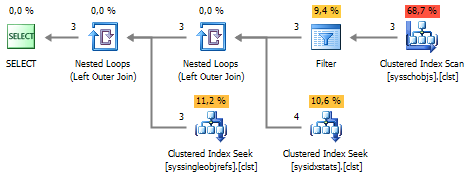
- Proper shutdown and restart the services: I read on few forums where users were asking about the safe shutdown steps because, improper shutdown effects on the running services. There are the clean shutdown scenarios:
- Stop the SQL Server by using service console.
- Shutting down the SQL Server
- Shutdown command in SQL Server Management Studio.
- Shutdown with NOWAIT
- Cable issue
- Killing the sqlserver.exe from task manager
- Drive failure where SQL database resides.
- Hardware maintenance: Hardware fault is one of the common reason of database corruption. It would be related to Disk, controller, CPU or, memory modules. As SQL Server depends on the disk subsystem, so, the minor issue in the hardware can corrupt the database. If you ever found any issue in the hardware, then please call or engage your hardware vendor. In these type of cases, the vendor checks the drivers, firmware, BIOS version to check their performance with the current database version. They hold the hardware diagnostic tools to find the exact issue of the hardware.

- Database normalization: Database Normalization is one of the most stronger parts of the database design. This is the technique to organise the data. Without normalizing the database, the database will be slow, inefficient and inaccurate. It is also possible that you will not get the data you expect if you ignore the normalization. The primary way to organise the data is a table. The database table is like Excel spreadsheet, where you can manage the data in the row and columns. In the data warehouse, multiple updates happen periodically if, data will be normalized so, the load time will be less, and it will help reduce the response time and prevent the database from the corruption.
- Periodic check and repairs of DB: Keeping the database healthy is also DBA’s responsibility. Here is a list of few “must do” task which you may perform for a periodic check for your database:
- Manage auto-growth correctly.
- Avoid schedule shrink operations.
- Turn-on the instant file initialization. It skips the zero writing step and immediately allocates the space for the data file.
- Detect and remove the index fragmentation.
- Turn on the page checksum.
- Maintain a regular process to run DBCC CHECKDB.
- Always keep the full database backup with this, differential and log backup for point-in-time recovery.

- Disk space management: Always pay attention to the disk space and manage it properly to avoid the corruption. I am just going to share a scenario, where user created the table and got the following error message:
Could not allocate space for object ‘dbo.stutable’ in database ‘MySchool’ because the ‘PRIMARY’ filegroup is full. Create disk space by deleting unneeded file, dropping objects in the filegroup, adding additional files to the filegroup, or setting autogrowth on for existing files in the filegroup.”
After checking the local disk space, they found the 0 bytes free space.

In this case, you should check the auto growth setting for data and log files of the affected database. It is also possible that you find the setting turn-off, which means, either one or both files reached to their maximum size.
To face this kind of situation, some users already creates the placeholder file. These are the larger file, which keeps the store on the disk.

- Update and optimize SQL server: Every update or version of SQL Server comes up with few new features, changes in the existing features and, strong fixing for a bug in the database. You should update the SQL Server to take the advantages of more features. It also improves the scalability and stability.

- Scan the SQL Server for virus and malware: Any virus or malware can be the reason of system crash and SQL Server performance degradation. Purchas the best anti-virus software for your system protection from any bug, viruses and malicious activity by Trojan. These viruses can also steal your personal information and downloads the other malware to the system.

- SQL Server platform issue: One reason could be SQL Server platform issue. Commonly, the third-party driver or firmware creates a problem in performance. To fix it, you need to determine the where the corruption is it.
Before I conclude to this post, I would like to request all the readers to take care of these 10 points in mind.
Conclusion
I dealt with many time with SQL database corruption, and sometimes, the reason was very silly. These silly mistakes do not acceptable from any professional. So always, focus on these points to prevent your database from corruption. These steps will help to prevent your database from corruption or failure.


