Access app is an advanced feature of Access Database 2013 that is used in web browser for sharing and collaboration within your organization. To use an Access app, you need Access 2013 and SharePoint Server 2013. You can create an app using two options:
From a template:

From a scratch:
What NEXT?
Now you will need to add some tables in your new created app. You can either add template tables or just start a new blank table.
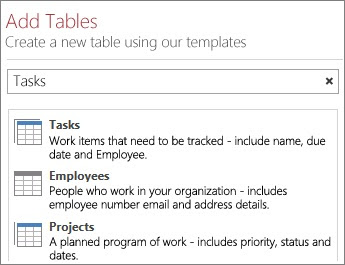
To add a template table: As shown in figure just type in search box what kind of information you want to store like tasks, employees, projects etc. Now click on Search button and select a suitable table from the list:
To add new blank table:
Now WHAT?
Enter Data in the Tables:
Import data from an external source:
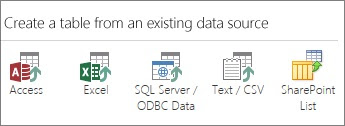
As shown in figure, You can also import data like Access desktop database, a Microsoft Excel file, an ODBC Data, a text/CSV file, or a SharePoint list. This data will be added as a new table.
VERY VERY IMPORTANT:
Microsoft also add backup feature in Access web apps so that you can take a backup of your apps that can be restored to a different location. You can create web apps backup copies in App Package files and restore them by uploading them to any SharePoint 2013 site.
Saving your App
To backup your app, save it as a SharePoint app package by clicking File > Save As > Save as Package.
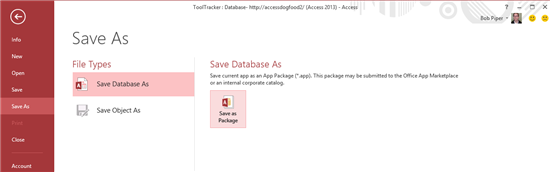
Now App Package file is saved to your system.
From a template:
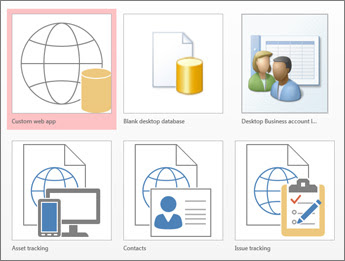
- Click on Access startup screen>> featured templates>>click on globe icon to create Access apps:

- Click on template and enter a name in the App Name box.
- Select a web location for the app
- click Create.
From a scratch:
- Open Access>>click on Custom web app

- Enter a name
- Select Web location for your app
- click Create.
What NEXT?
Now you will need to add some tables in your new created app. You can either add template tables or just start a new blank table.
To add a template table: As shown in figure just type in search box what kind of information you want to store like tasks, employees, projects etc. Now click on Search button and select a suitable table from the list:

To add new blank table:
- Click on Add a new blank table.
- Now You will the newly created tables in the left pane.
Now WHAT?
Enter Data in the Tables:
- Home tab>>click Open in Browser
- Select the table and view you want to use
- use the action bar buttons to add, edit, and delete items.
Import data from an external source:
As shown in figure, You can also import data like Access desktop database, a Microsoft Excel file, an ODBC Data, a text/CSV file, or a SharePoint list. This data will be added as a new table.

- Start App>>open it in Access (in the browser, click Settings > Customize in Access)
- click Home > Table.
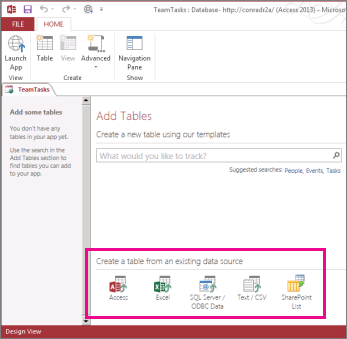
- Now you can see “Add Tables page” as clearly shown in picture.
- At the bottom of this page, click the type of data source you want to import, and follow the instructions in the Get External Data wizard.

VERY VERY IMPORTANT:
Microsoft also add backup feature in Access web apps so that you can take a backup of your apps that can be restored to a different location. You can create web apps backup copies in App Package files and restore them by uploading them to any SharePoint 2013 site.
Saving your App
To backup your app, save it as a SharePoint app package by clicking File > Save As > Save as Package.
Now App Package file is saved to your system.


